From first launch to a sellable barrel report.
The app walks you through the first three steps on first launch: add a firearm, add your loads, log a range day. This page covers the same ground and everything after it. Each question below links to the screens involved further down.
Frequently asked
What should I set up first?
On first launch the app opens a short Getting Started guide: add a firearm, optionally add the loads you shoot, then open your first range log. Each step opens the real form, so what you enter is your data. You can bring the guide back any time from Settings → Help → Getting Started Guide.
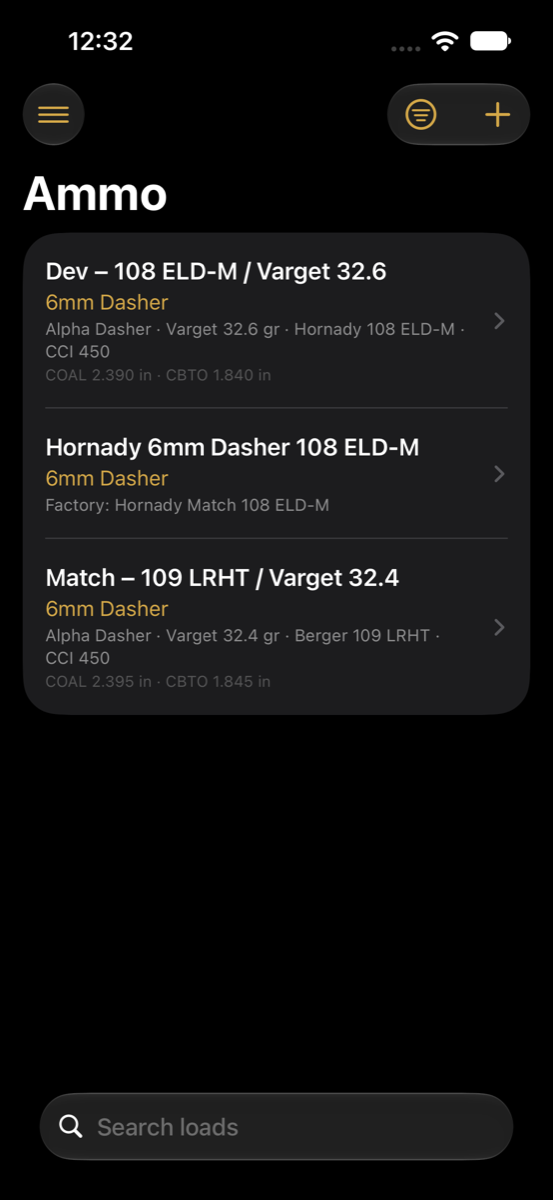
Doing it by hand, the order is gear, then a rifle, then loads. Add your barrel (with its expected life and a cleaning interval), action, optic and so on under Gear. Create a Firearm and mount those parts in its slots. Then add the components and Loads you shoot. After that, every range day is a two-minute entry. See the guide.
How do round counts work? I don't see a place to type them.
You don't type them. A part's round count is its starting round count (what it had before you started tracking) plus every shot string fired in a range log where that part was on the gun. Edit or delete a session and every count corrects itself. The only number you ever enter is rounds per string.
How do I log a range day?
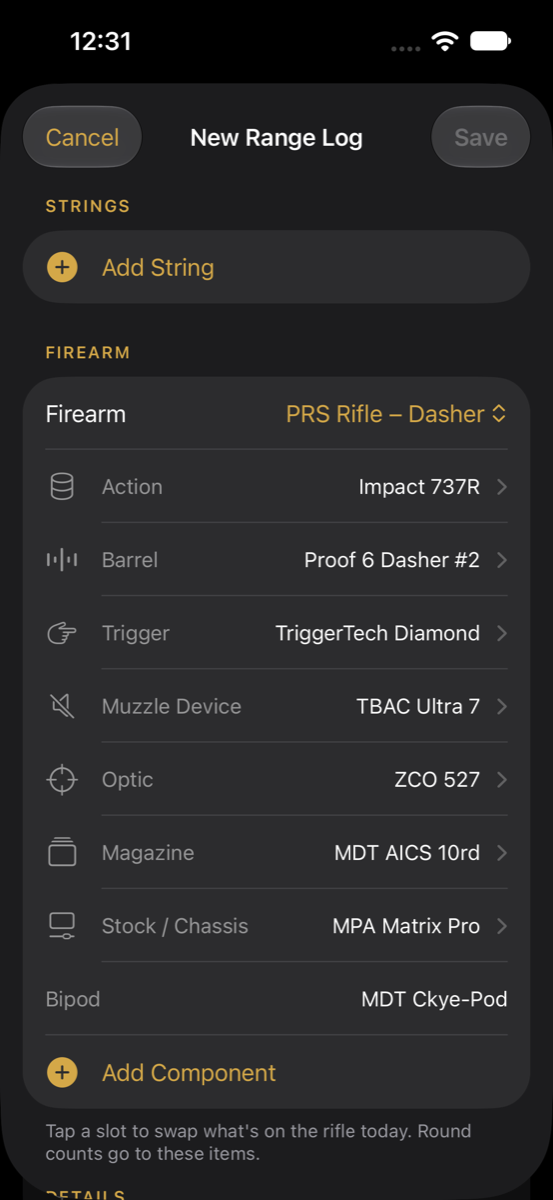
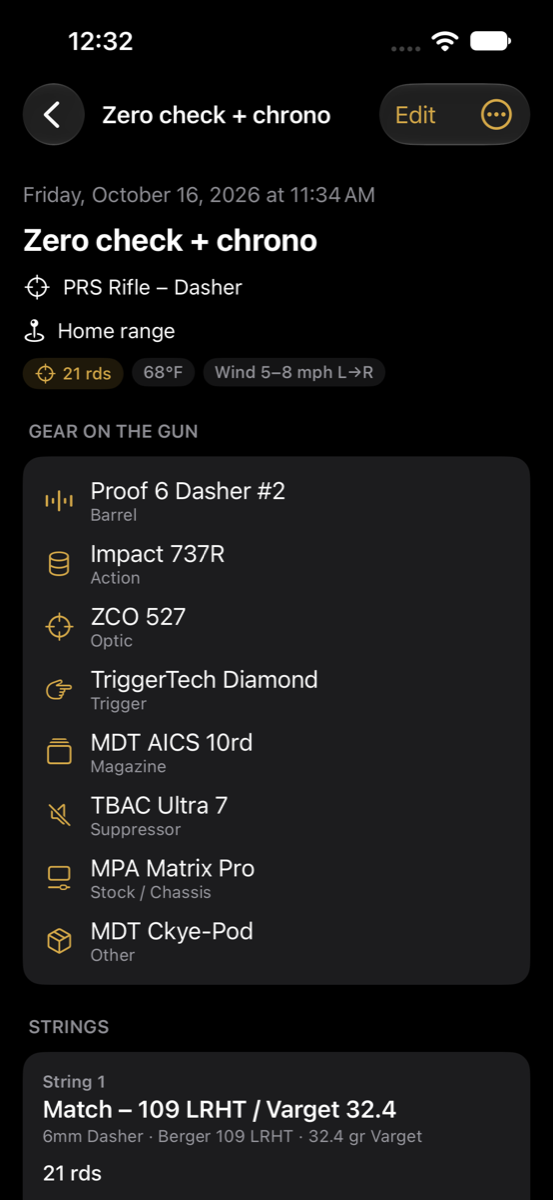
Tap New Range Log at the top of the home screen. Add a shot string for each load you fired (rounds, then load). Confirm the firearm; if you swapped a part for the day, tap that slot and pick the part, and optionally save the new configuration back to the rifle. Fill conditions by hand or from your location. Save. See the screens.
What is a "shot string"?
A string is a batch of rounds of one load. A typical match day might be one string of 95 rounds of your match load; a load-development day might be six strings of 5 rounds each. Chrono data and target photos attach to a string.
How do I get Garmin Xero data in?
In Garmin ShotView, open the session and share its CSV export. Choose Invictus RangeLog in the share sheet; the app opens a new range log prefilled with the shot count and velocities. Or open a session, find the string, and tap Import CSV. Manual entry is there too. Details.
How do I measure a group?
On a string, tap Add Target, take or choose a photo, then mark two reference points a known distance apart (a 1-inch grid square, or the target's printed diameter) and tap each bullet hole. The app computes extreme spread, mean radius and MOA, and stamps the target with the barrel's round count so the trend chart works. Details.
How do maintenance intervals work?
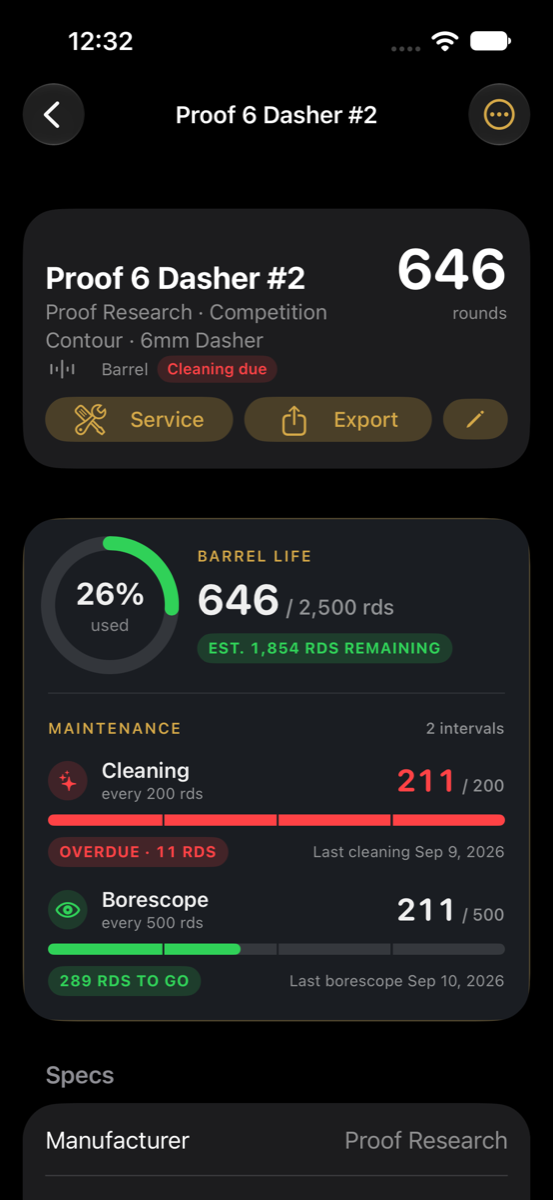
Edit any gear item and add intervals: a kind (Cleaning, Borescope, Inspection…) and a round count. Each interval counts rounds since the last logged maintenance event of that kind. Log an event from the item's Service button. Due and overdue show on the item, in lists, and on the home screen. Details.
How do I export a barrel's history to sell it?
Open the barrel and tap Export. Choose what to include, then Share PDF (or JSON). You'll see a "Building PDF…" overlay for a second or two. The PDF has specs, total rounds, rounds by load, maintenance log, group-size trend and life used. Details.
Do I need an account?
No. Everything works offline with no sign-in. Sign in (Apple or email) only if you want your data backed up and shared between your devices. Sync is end-to-end encrypted; see how it works.
What is the encryption key, and why should I export it?
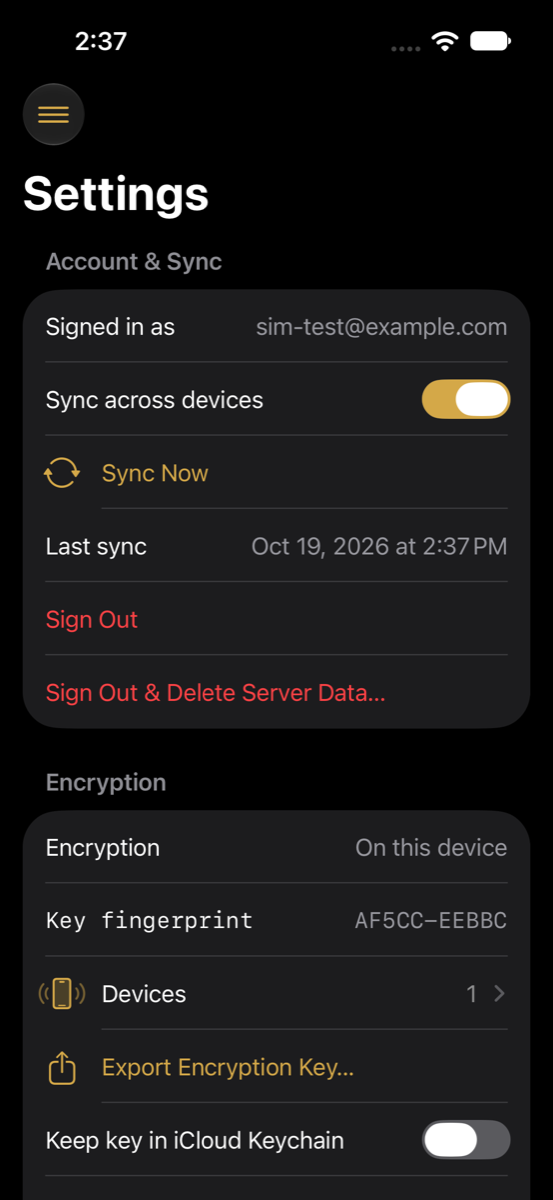
The key that scrambles your data lives only on your devices. If you get a new phone and don't use iCloud Keychain, that phone cannot read your synced data until you give it the key. Settings → Encryption → Export Encryption Key saves a small file; keep it in a password manager. On a new device, Import Encryption Key and everything comes back. Details.
I signed in on a new phone and it says it can't read the server data.
That phone doesn't have your key. Either import your exported key file, turn on Keep key in iCloud Keychain on both devices, or, if you've lost the key for good, tap Replace Server Data with This Phone's to start the server copy over from whatever is on that phone.
How do I delete my data?
Settings → Sign Out & Delete Server Data wipes the server copy and keeps your phone's. Delete Account removes the account and everything with it. Deleting the app removes the local database. Nothing is retained.
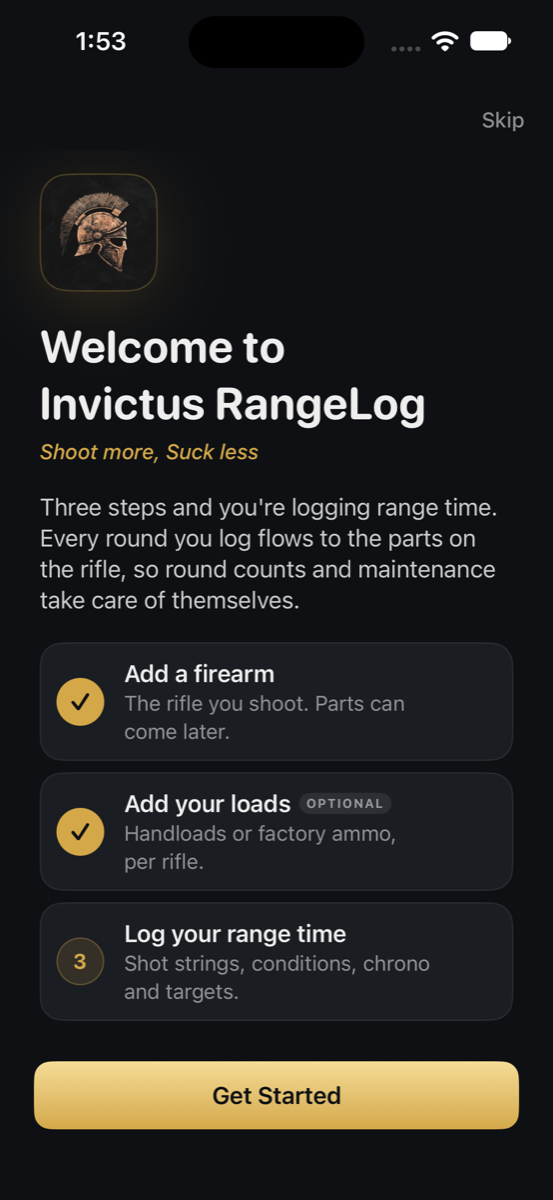
The Getting Started guide
- The first time the app opens it offers three steps. Get Started walks them in order; Skip drops you on the home screen.
- Add Firearm opens the real New Firearm form. A name is all it needs; parts can be mounted later.
- Add Load is optional. Add the loads you shoot now, or skip and add them as you go.
- New Range Log finishes the guide and opens your first range log with the rifle preselected.
Bring it back any time from Settings → Help → Getting Started Guide. Steps you've already done show a check.
Set up gear and a rifle
The guide covers the firearm and loads. Here is the longer version, with gear.
- Open the menu and go to Barrels. Tap +, give the barrel a name, cartridge, twist and so on.
- Enter the starting round count if it isn't new, and an expected life (2,500 is a sensible default for a 6mm match barrel).
- Under Maintenance intervals, add Cleaning every 200 and Borescope every 500, or whatever your routine is.
- Add your other parts under Muzzle Devices and Firearm Components.
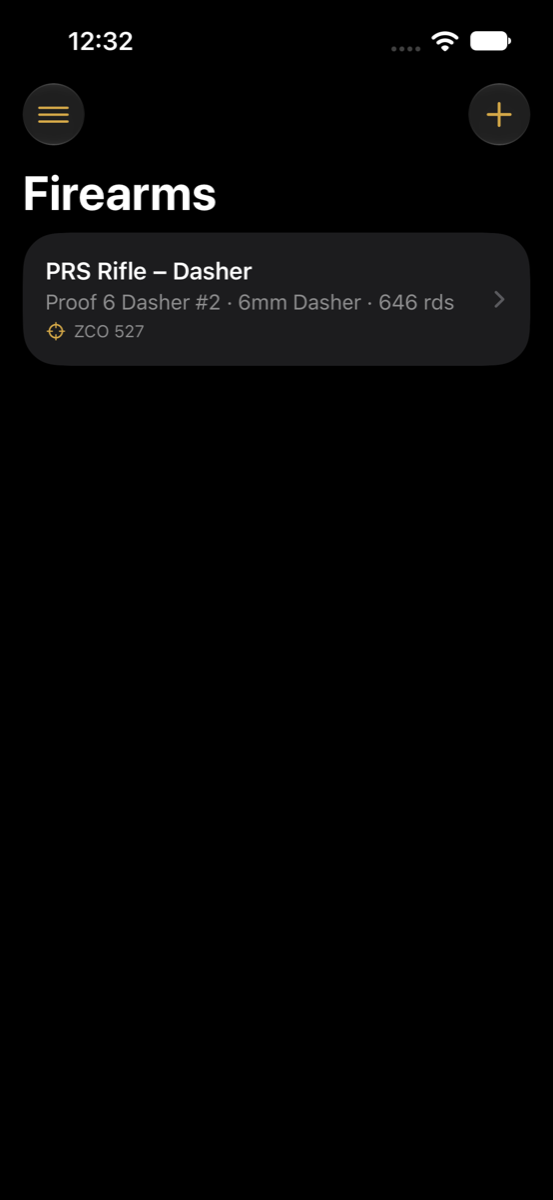
- Go to Firearms, tap +, name the rifle and mount each part in its slot.
Parts can be swapped later from the firearm page, or just for a single range log.
Log a range day
- Tap New Range Log on the home screen.
- Add Shot String: rounds first, then the load. Loads assigned to this rifle are listed first.
- Check the Firearm section. Tap any slot to swap what's on the gun today; a Swapped tag shows what differs from the profile, and a toggle lets you save the change back to the rifle.
- Optionally add a title and location, and tap Fill from my location to pull temperature, humidity, pressure, density altitude and wind.
- Save. Round counts on every mounted part update immediately.
Keep up with maintenance
- Open a barrel or suppressor. The panel shows the life ring and one gauge per interval with rounds since, a status chip and the last service date.
- When you clean it, tap Service, pick the kind (Cleaning, Borescope, Factory Service…), confirm the round count and add notes.
- Events that reset the interval restart that kind's counter. A borescope look you don't want to count as service can be logged with the toggle off.
- Due and overdue items show as red chips on the home screen, in gear lists and under Settings → Maintenance due.
Chrono data and targets
From a Garmin Xero
- In Garmin ShotView, open the session and share its CSV.
- Pick Invictus RangeLog in the share sheet. A new range log opens with the shots prefilled; choose the firearm and load and save.
- Or, in an existing session, tap Import CSV on the string, or Enter to type velocities.
Measuring a group
- On a string, tap Add Target and take or choose a photo.
- Mark two reference points a known distance apart and enter that distance in inches.
- Switch to Shots and tap each hole. ES, mean radius and MOA update live. Save.
Export a barrel report
- Open the barrel and tap Export.
- Choose whether to include the session log and maintenance notes.
- Tap Share PDF (or JSON). A "Building PDF…" overlay shows while it renders; then the share sheet opens.
- Preview PDF shows it in-app first if you'd rather check it.
The report is generated on the phone from the data on the phone. Nothing is uploaded to make it.
Sync, and keep your key safe
- Settings → Sign in to sync. Use Sign in with Apple, or an email and a 12+ character password. Your password never leaves the phone.
- On first sync the app creates your encryption key and uploads your data encrypted.
- Export Encryption Key and save the file somewhere private (a password manager is ideal). The fingerprint shown in Settings lets you confirm two devices hold the same key.
- On a second device, sign in, then Import Encryption Key, or turn on Keep key in iCloud Keychain on both devices and let Apple carry it.
Why this matters: without the key, the server copy is unreadable, even to us. Read why.